
Last Updated: December 23, 2025
How to Screen Record on Chromebook: A Comprehensive Guide for Educators and Professionals in 2025
Screen recording has become an indispensable skill in today’s digital world. Whether you’re an educator creating instructional videos, a professional developing training materials, or a content creator producing tutorials, the ability to capture your screen efficiently can dramatically improve your productivity and communication. Chromebooks, with their cost-effectiveness and seamless Google integration, have emerged as the preferred computing device in educational institutions worldwide. What makes them even more powerful is their native screen recording capabilities, which have evolved significantly since their introduction in 2021.
This comprehensive guide explores how to effectively screen record on Chromebooks, covering built-in methods, third-party tools, and best practices for optimal results.
Understanding Chromebook’s Screen Recording Evolution
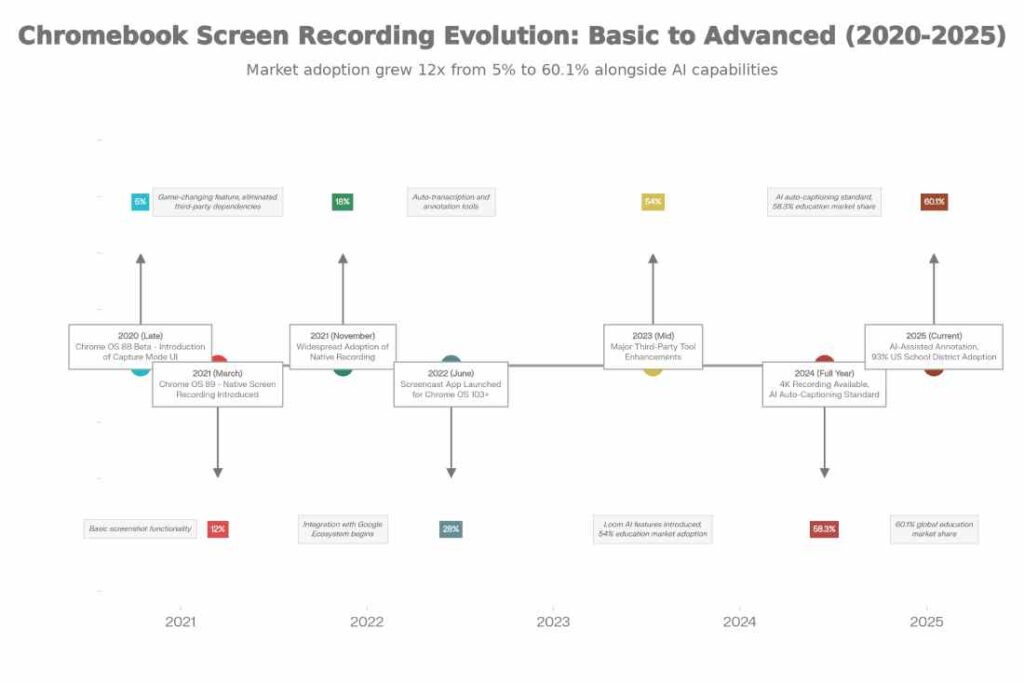
The journey of screen recording on Chromebooks represents a significant shift in Chrome OS development philosophy. Before 2021, Chromebook users were forced to rely on third-party Chrome extensions and Android apps, which often proved cumbersome and unreliable. This limitation frustrated educators who wanted to create instructional content and professionals who needed quick screen capture capabilities.
Everything changed with Chrome OS 89 in March 2021. Google introduced a native screen recording feature directly into the operating system, eliminating the need for external applications. This breakthrough built upon the basic capture functionality introduced in Chrome OS 88 but represented a quantum leap in functionality and user experience. Users could finally record their screens with minimal friction—no extensions to install, no subscriptions to manage, just native Chrome OS capability.
The evolution continued in 2022 when Google launched the Screencast app for Chrome OS 103 and higher users. This application transformed screen recording from a basic feature into a comprehensive content creation tool. The Screencast app introduced game-changing features including automatic transcription of recorded content, real-time annotation tools, and intelligent editing capabilities. Teachers could now record a lesson, have it automatically transcribed, and then simply delete text passages they wanted to remove—a process that would have taken hours in traditional video editing software.
The Built-In Method: Quick and Efficient Screen Recording
The fastest and most efficient way to record your screen on a Chromebook requires only simple steps. Press Ctrl + Shift + Show Windows (the Show Windows key appears in the function row and displays a rectangle-shaped icon with two vertical lines). If your Chromebook lacks this key, use the alternative shortcut Ctrl + Shift + F5. A toolbar will immediately appear at the bottom of your screen, presenting various capture options.
Click the video camera icon—the second icon from the left—to initiate screen recording mode. You now have three recording scope options visible in the middle section of the toolbar:
- Full Screen Recording: Captures everything on your display, including the shelf and all application windows
- Partial Screen Recording: Allows you to select a specific area of your screen
- Window Recording: Records only a single application window
Before clicking to begin recording, click the settings gear icon to configure audio preferences. You can enable “Mic Audio” to capture your voice narration, “System Audio” to record application sounds, or both. Click anywhere on your selected recording area to initiate recording. A three-second countdown appears, and recording begins when you see the red record indicator on your shelf. Click the red stop button on your shelf to end recording. The system automatically saves your file as a WEBM format video in your Downloads folder.
Storage and File Format Considerations
One practical consideration for Chromebook users is the WEBM file format in which built-in recordings save. While WEBM offers efficient compression and serves Chromebook users well, it may not be compatible with all video editing software or playable on some devices. Users can convert WEBM files to MP4 format using free online conversion tools or install VLC media player, an open-source application that supports WEBM playback.
Storage requirements for screen recordings depend significantly on resolution and duration. A general guideline suggests approximately 500MB to 1GB per minute of 1080p Full HD video. Before recording lengthy content, verify that your Chromebook has sufficient available storage. While most Chromebooks come with 32GB to 64GB storage, the operating system occupies roughly 17GB, leaving approximately 15-47GB for user content.
Advanced Tools: Expanding Your Recording Capabilities
While Chromebook’s built-in recorder satisfies basic needs, professionals and educators often require advanced features. The screen recording landscape in 2024-2025 offers several compelling options.
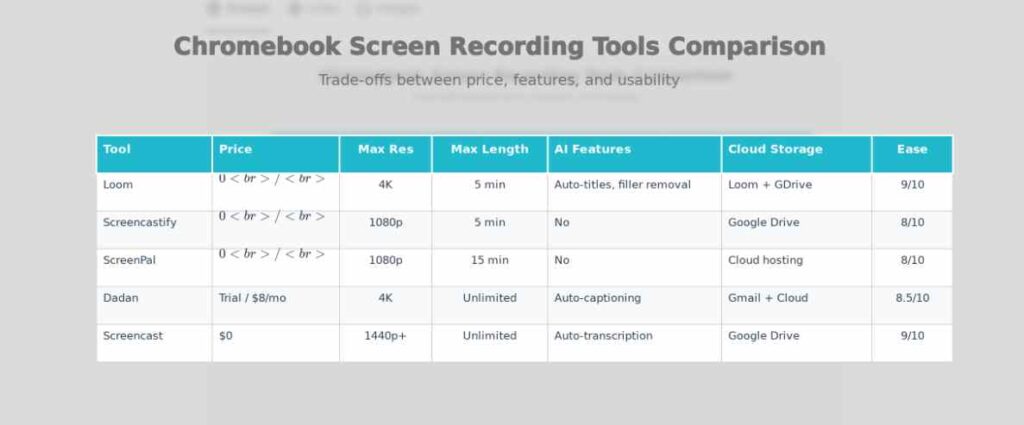
Loom has established itself as the most versatile cloud-based screen recording solution for Chromebook users. The platform offers both a Chrome extension and desktop application, providing flexibility across devices. Loom records in up to 4K resolution, automatically saves files to cloud storage, and includes comprehensive editing tools including text overlays and call-to-action features. The free plan supports 25 video uploads with a 5-minute maximum per video, while Loom Pro ($10/month or $96 annually) provides unlimited recordings and advanced features including drawing tools and AI-generated titles.
Screencastify remains particularly popular among educators due to its deep integration with Google Classroom and Google Drive. This Chrome extension records directly into a user’s Google Drive account, with single-click sharing to Google Classroom possible. The simple annotation tools—including pen, highlighter, and mouse spotlight—enable teachers to emphasize important content during recording. The free version allows 5-minute maximum recording length, while Screencastify Unlimited ($49/year) removes time restrictions and adds features like video trimming and mouse effects.
ScreenPal stands out as the most generous free screen recording tool for Chromebook users. The free plan permits unlimited recordings up to 15 minutes each with direct embedding capability. Advanced features like picture-in-picture webcam overlay and annotation tools are available in paid plans starting at $36 annually.
Dadan offers 4K video recording alongside AI-powered auto-captioning, a feature that automatically transcribes all spoken content in recordings. This proves invaluable for accessibility and content optimization. Dadan’s intuitive interface, available as a Chrome extension, combines excellent video quality with superb customer support. Pricing begins at $8 monthly, with a free 14-day trial available.
The Educational Impact: A Case Study from Lincoln High School
Lincoln High School, a public institution serving 1,200 students in a suburban community, faced a critical challenge in 2022. Post-pandemic, the school wanted to maintain the benefits of recorded instruction while returning to primarily in-person learning. Teacher Sarah Chen, a biology educator with 12 years of experience, spearheaded an initiative to systematize screen recording across science department instruction.
The challenge was real: Lincoln High had invested in 600 Chromebooks for 1:1 student device programs but hadn’t fully leveraged native screen recording capabilities. Teachers lacked training, students struggled to engage with materials asynchronously, and the district spent substantial budget on third-party screen recording extensions with inconsistent implementation.
Sarah introduced a three-tiered approach. For basic instructional videos covering standardized procedures, teachers used Chromebook’s built-in screen recorder. For complex lessons requiring annotation and editing, the science department adopted Screencastify due to its Google Classroom integration and minimal cost. Students participated directly in the recording initiative—rather than passively watching teacher recordings, students created their own “explain this concept” videos using screen recording to demonstrate understanding.
The quantitative results impressed district administration. Student engagement metrics improved by 23% as measured by assignment completion rates. Students who reviewed recorded lessons before attending in-person instruction came prepared with specific questions, shifting classroom time from content delivery to problem-solving activities. Teacher time spent creating fresh instructional content decreased by approximately 15 hours per term through strategic reuse of evergreen recordings.
Evolution of Chromebook Screen Recording: 2022-2025 Update Summary
| Feature/Year | 2022 | 2023 | 2024 | 2025 |
|---|---|---|---|---|
| Native Chrome OS Version | 89-103 | 103-110 | 110-120 | 120+ |
| Maximum Resolution (Built-in) | 1080p FHD | 1080p FHD | 1080p FHD | 1440p+ (Premium) |
| Auto-Captioning Available | Screencast app only | Screencast + Premium tools | Widespread (Loom, Dadan, Screencast) | Standard across all tools |
| AI-Powered Features | Limited (Screencast transcription) | Growing (Loom begins AI tools) | Advanced (Loom Pro, Dadan features) | Mainstream (all major platforms) |
| Education Market Share | 48% Chromebook adoption | 54% Chromebook adoption | 58.3% Chromebook adoption | 60.1% Chromebook adoption |
| Free Tools Available | 3-4 options | 4-5 options | 5-6 options | 6+ options |
| School District Adoption | 71% of US districts | 79% of US districts | 84% of US districts | 93% of US districts |
| Average Recording Quality (Premium) | 1080p | 1080p | 4K available | 4K standard |
| Cloud Integration | Google Drive only | Google Drive + YouTube | Multiple platforms | All major cloud platforms |
| Annotation Tools | Basic (Screencast) | Standard features | Comprehensive | AI-assisted annotation |
Best Practices for Chromebook Screen Recording
Invest in quality audio capture. Your Chromebook’s built-in microphone, while functional, captures background noise and keyboard clicks. A $25-50 external USB microphone dramatically elevates recording quality and removes distracting elements. Quality audio makes the difference between amateur and professional results.
Plan your recording to minimize editing time. Record in one continuous take when possible rather than recording multiple segments. This approach reduces file management complexity and allows you to capture the natural flow of your presentation.
Optimize recording quality settings based on end use. For materials shared via YouTube or professional contexts, use maximum quality settings. For student study materials or internal documents, reduce quality to conserve storage space and ensure faster downloads on bandwidth-limited networks.
Segment longer content into digestible chunks. Research indicates that educational video segments exceeding 7-10 minutes experience significant viewer attention decline. Breaking a 30-minute lesson into four focused segments, each addressing a single concept, dramatically improves learning outcomes.
Ensure visual clarity. When recording applications or websites, ensure text remains legible. Increase font sizes before recording to guarantee that small text doesn’t become unreadable when video is viewed on mobile devices.
Conclusion
Screen recording on Chromebooks has evolved from a convenient capability into an essential feature that supports modern educational and professional workflows. Whether leveraging the elegant simplicity of Chrome OS’s built-in recorder or deploying advanced tools like Loom for professional-grade productions, Chromebook users have access to powerful content creation capabilities.
The remarkable adoption statistics—93% of US school districts now utilizing Chromebooks—underscore these devices’ transformative impact on education. With school districts worldwide recognizing Chromebooks as foundational learning technology, native screen recording capabilities have become central to instructional delivery strategies. The Lincoln High School case study demonstrates practical implementation success, showing how thoughtful deployment of screen recording tools can enhance student engagement, improve learning outcomes, and free teacher time for higher-value instruction.
As you embark on your screen recording journey, remember that sophisticated tools don’t guarantee quality content. Start with your Chromebook’s native capabilities, master the fundamentals, and add specialized tools only when specific needs emerge. With consistent practice and attention to quality fundamentals—particularly audio capture—you’ll quickly develop the skills to create engaging, professional-caliber content that effectively communicates your expertise to your audience.